VS code and Github
A match made in heaven
I am a huge fan of Git and Github, of course, and I am a huge fan of Visual studio code as well.
So far I have spent an insane amount of hours in front of these two platforms/software.
Visual studio code was launched by Microsoft at the end of 2015. Github existed since 2008 but, in 2018, Microsoft acquired Github for the sum of 7.5 billion dollars and the match between these two entities started unconsciously to take shape.
As a huge fan of Git, I have been using the CLI´s commands quite a lot. As a matter of fact I always privileged CLI commands to GUI solutions, even with official tools, such as Github Desktop or SourceTree, although they are very good solutions.
It was when I had to try to simplify the Git/Github flow for new beginners student that I experimented with integration between VS Code and Github.
To be honest, the simplicity and efficiency I discover in between this match made in heaven, just made up my mind about the CLI approach.
The first step is to synchronize your VScode to your GitHub account, still an easy and integrated procedure.
If you have already Git installed on your computer you have, by default, in VS code, already a lot in place under the section "Version Control", from where you can clone directly a Repo from Github.
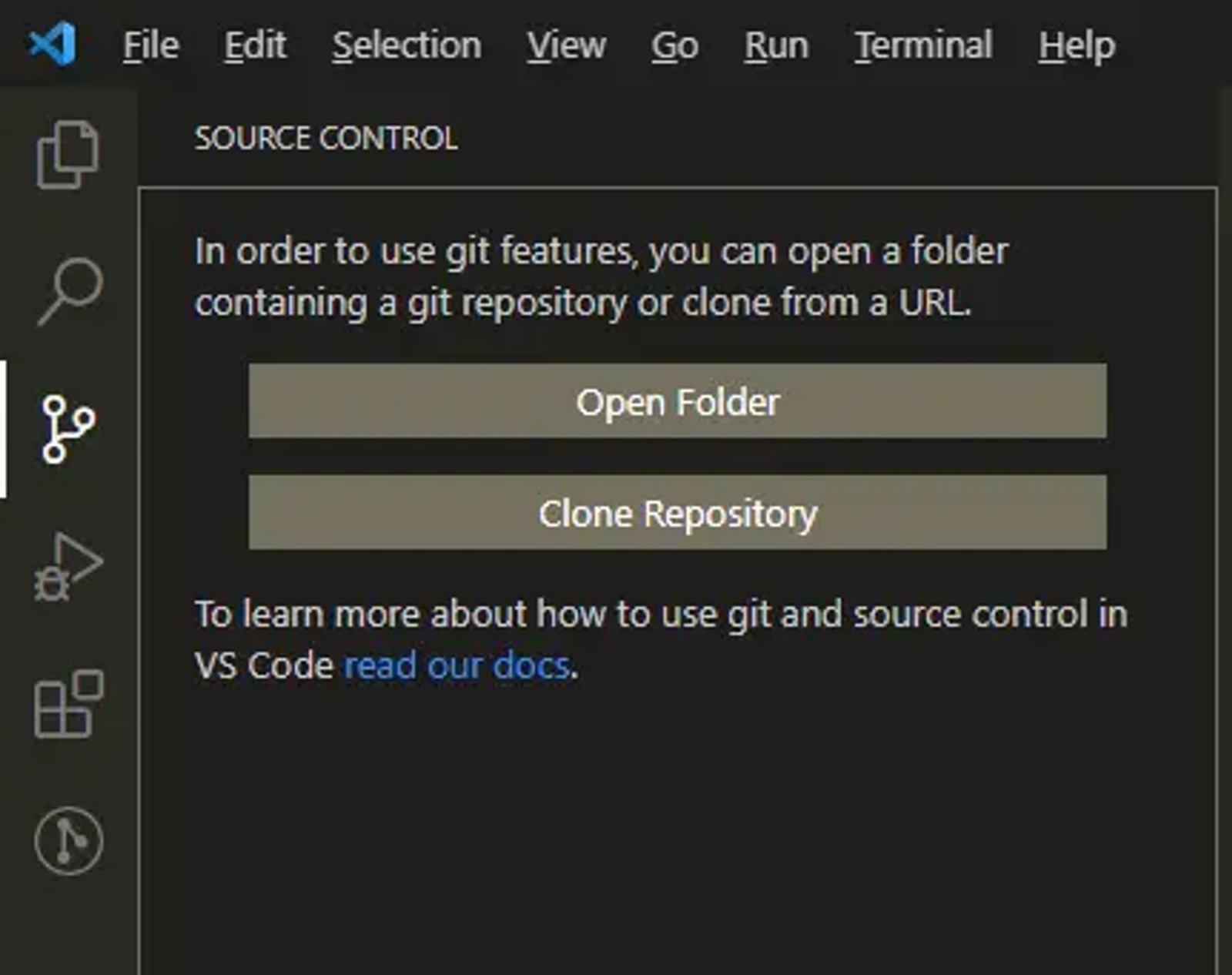
It looks like more job than running a simple git clone in Terminal inside a folder. Copy the repo link then click "clone", paste the link in the field in VS code then finally choose the folder. But this visual process is much more concrete for a beginner than the abstract connection established by a "git remote add" command line instruction.
The opposite can be done when we want to publish a new repository. If we open a folder in VS code, under the same Version Control section we can find two possibilities: initialize a repository (for a local version controlling) or publish a new repository.

Easy peasy! From now on your VS code project is connected to your Github account.
You may add more functionalities by installing proper extensions such as GitLens which allow you to control branches, create and checkout in between branches.
There is still complex operation, such as rebasing, that I still operate via CLI but, by now the rest of the operations are run on GUI. If I jump on CLI now and then it is because I do not want to forget the commands and maybe for a little bit of nostalgia.
It is not only to connect or clone repositories from Github but the workflow continues. Every change developers perform now is tracked and, under the section "source control", you find the list of changes.
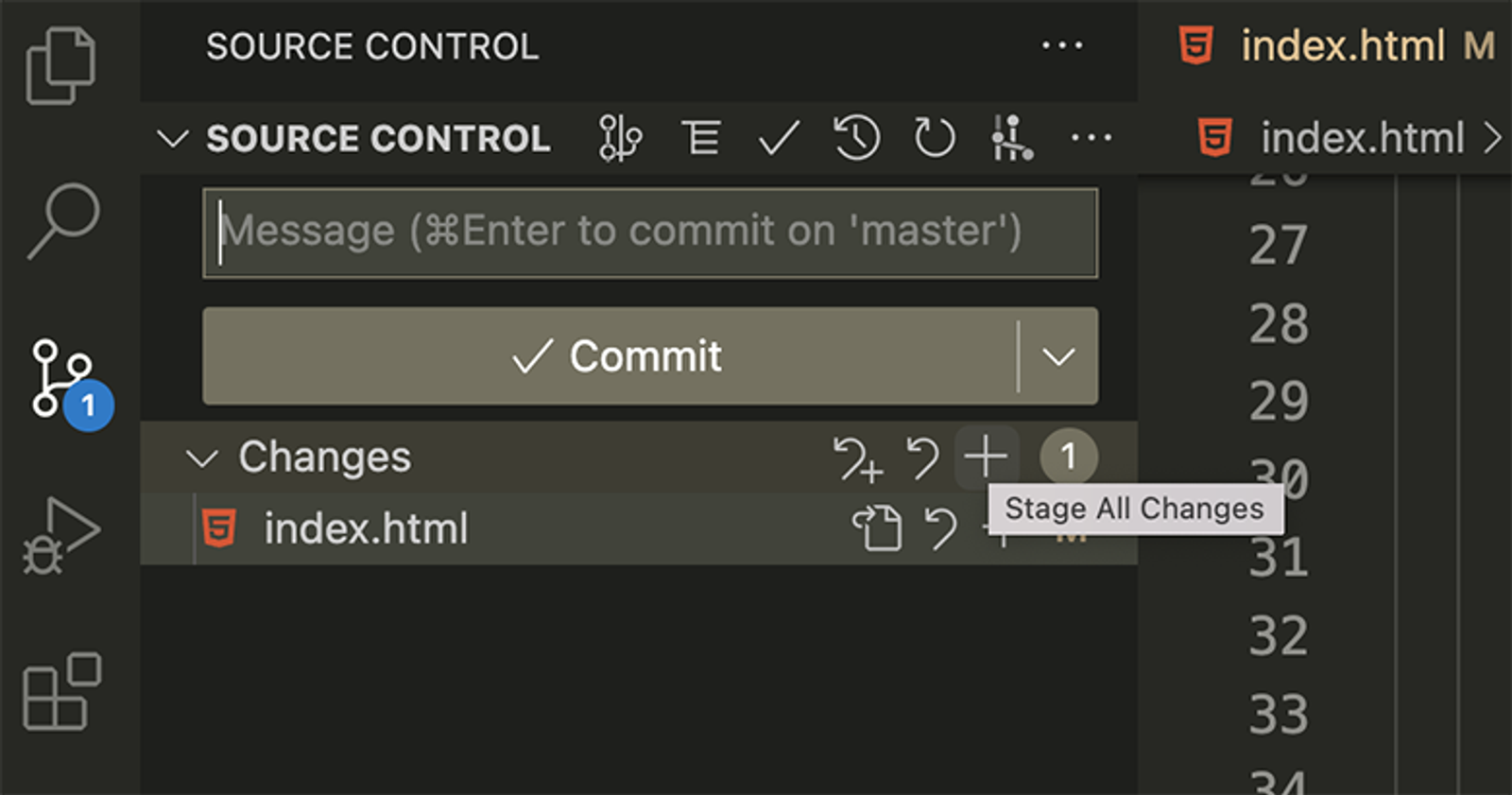
In this section, you can check which changes have been done, and if you are done you can stage them, write a commit message, and commit.
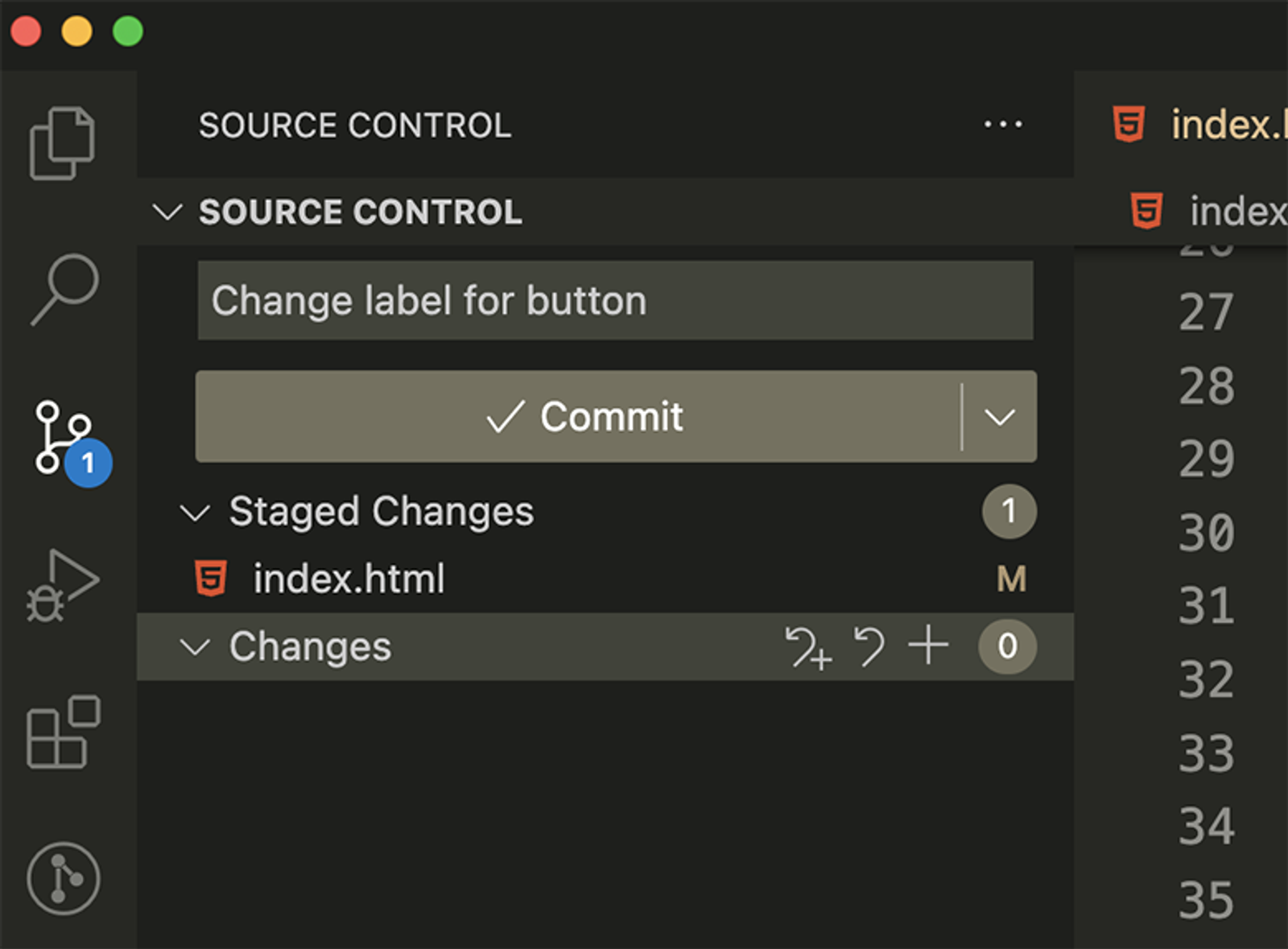
After "commit", you are only a click away from synchronizing your repository with the newly committed code or the new branch.
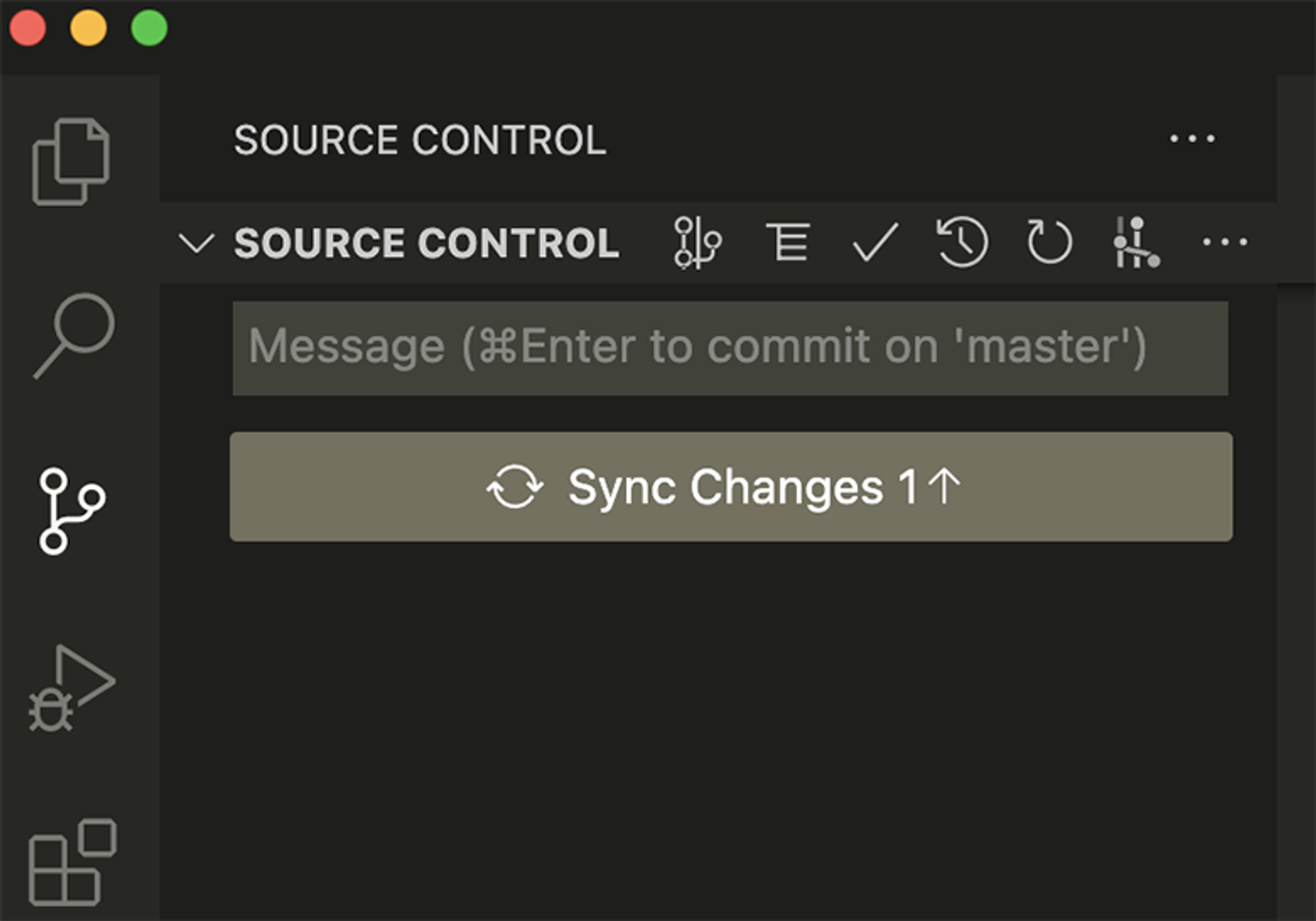
The repository and the project folder are now up to date!
This match does not stop here. If you install the GITLens extension you will be able to manage also further aspects of version control. For example, branching, switching between branching, creating new branches, and conflict resolving.
Developing in Github with VS code
The match goes beyond version control. If you browse your repository and you want to edit files of the repository in VS code directly into the browser, it is as easy as changing the domain suffix from .com to .dev and refresh the URL. By doing this a VS Code browser version opens in the same window and allows you to edit all files of the repository.
Illustration by Carlo Alberto Burato